Tinkerer2019 – present
Old gadgets rarely die because the hardware is bad. They die because the software gets abandoned. I like proving that wrong, and I’ve been doing it since around 2019: a shelf of things that were headed for the bin, each given a new job. The two newest projects are below.
 homtom
An old TomTom navigator, running Linux I put on it myself, as a small Home Assistant sensor and control panel. It’s a wall-mountable screen that knows where it is, how it’s powered, and what’s going on in the house.
Quick facts
- Age: a TomTom GO 630, a 2007 design. The display board in mine is dated February 2007, so this device is almost 20 years old.
- Hardware: a 400 MHz ARM9 chip and 64 MB of memory. Smaller than a modern smartwatch.
- Software then and now: the original system ran Linux 2.6.13, a kernel from 2005. It now runs Linux 6.1, about seventeen years newer.
- Speed: my first status page took 2.2 seconds to answer, because every request started a pile of shell scripts. Replacing them with one tiny program written in C brought it down to a few tens of milliseconds, around 90 times faster. The commands behind it got the same boost.
- Now: it boots reliably, runs its own services and works as a Home Assistant panel.
The hard part is that there is nothing to talk to. No serial console, no debugger, no network, and nothing on the screen until the system is already running. When my first kernel simply stopped, the device gave me no hint why. The only output I had was the screen itself, so I taught it to speak, one step at a time.
How I learned to debug with nothing
1. Colours as breakpoints. The very first thing a kernel can do is paint the screen a solid colour. So I put a colour at each stage of the boot: white as it enters the kernel, cyan once it knows the machine, yellow just before it sets up memory, orange inside it, and so on. Whichever colour stayed on screen was the last thing that worked, and the crash was in whatever came next. Then I split those stages into finer ones, again and again, like bisecting a bug with a paintbrush.
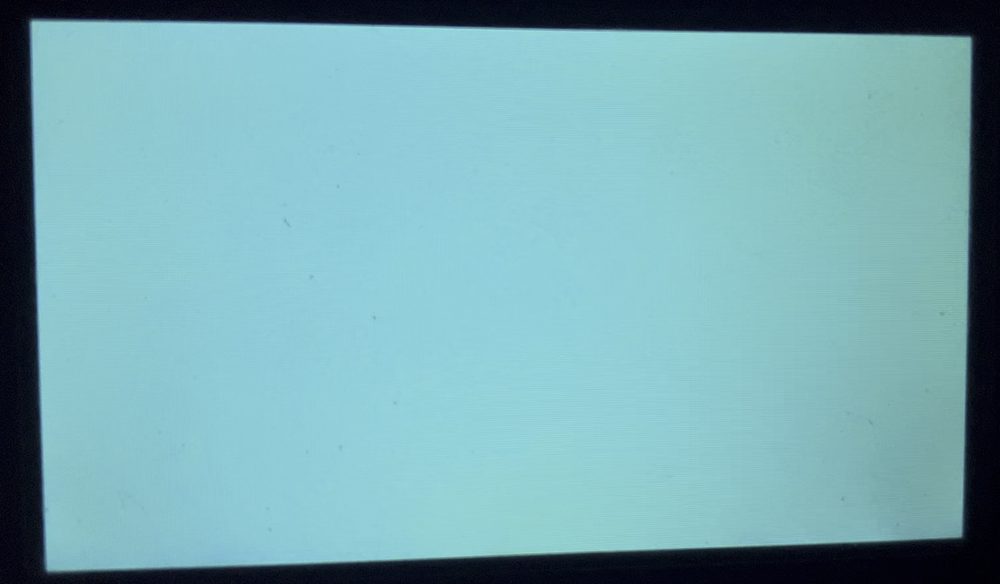
2. Flashing zeros and ones. A colour only says where. To read an actual value, I made the screen blink it out as a pattern: short flashes for ones, a different colour for the gaps, one bit at a time. It worked, though painfully slowly.
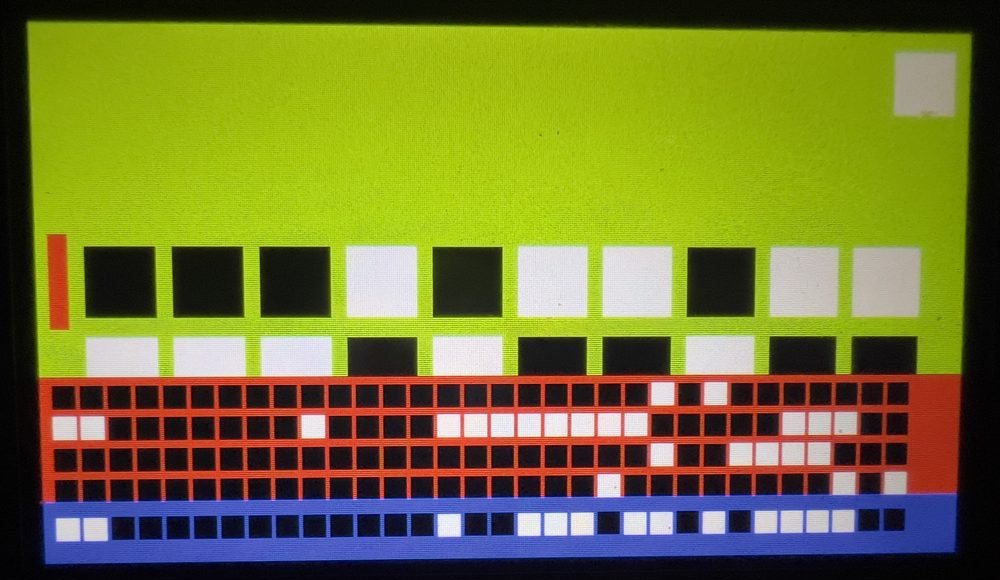
3. Squares. Blinking is slow, so I drew the bits as squares instead: black for zero and white for one, in rows I could read at a glance, with a coloured bar for each group. A whole value fits in one photo instead of a minute of watching.
4. Numbers. Reading binary gets old quickly. The next step was a tiny pixel font that draws real hexadecimal digits, so the screen can show actual register values and addresses.
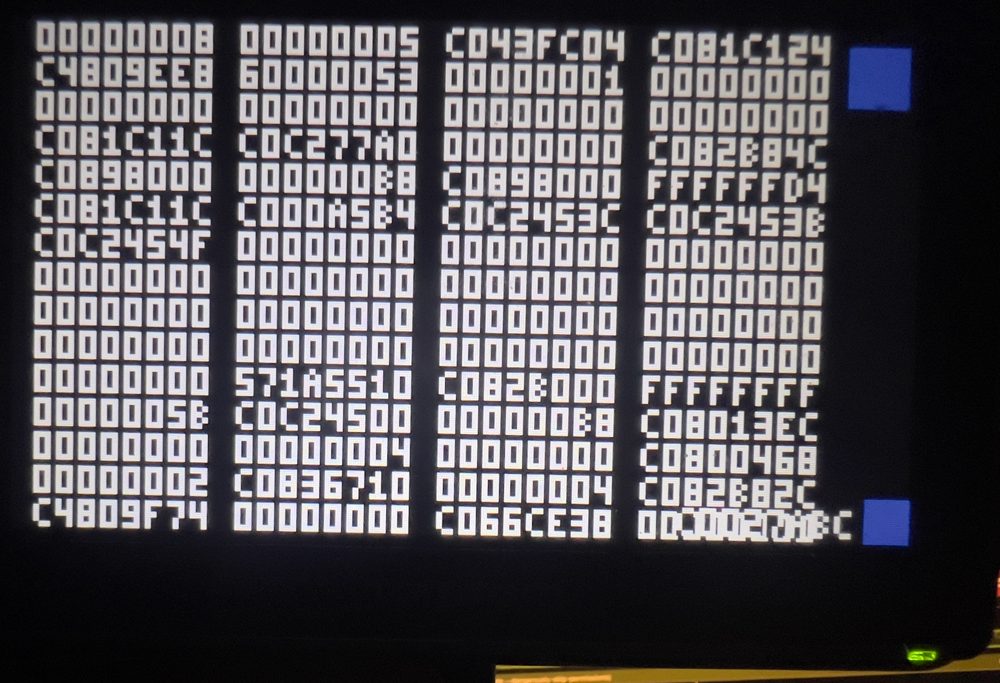
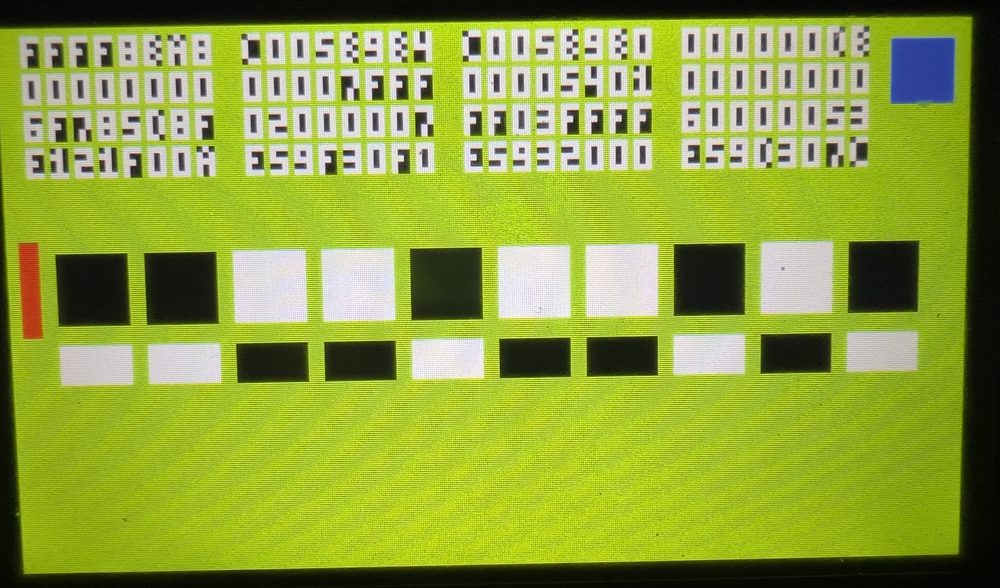
5. Letters, and finally a terminal. Once you can draw digits, letters are just more glyphs. I added a text console, and suddenly the kernel could say what it was doing in words: the memory it found, the drivers it started, the moment it handed over to the first program.
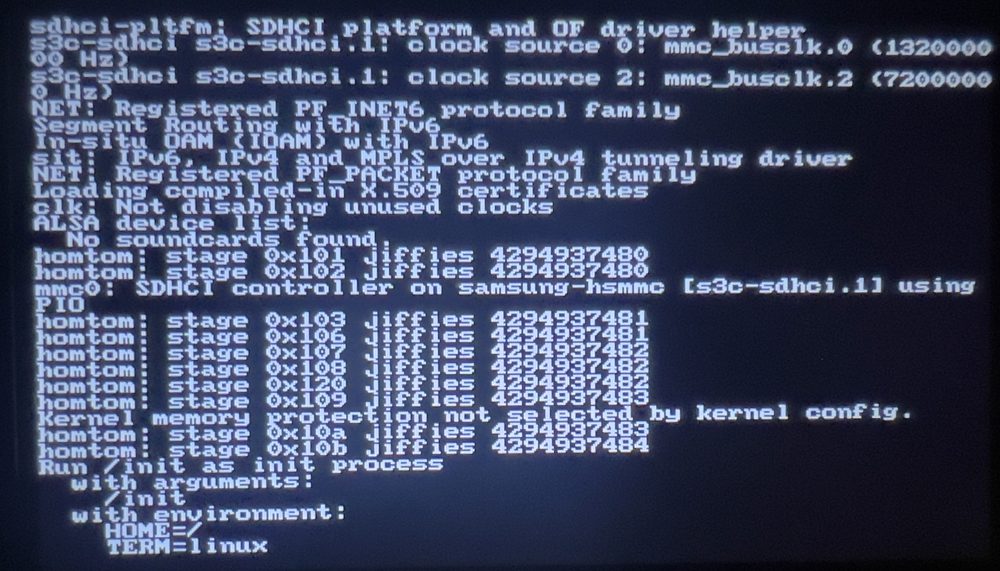
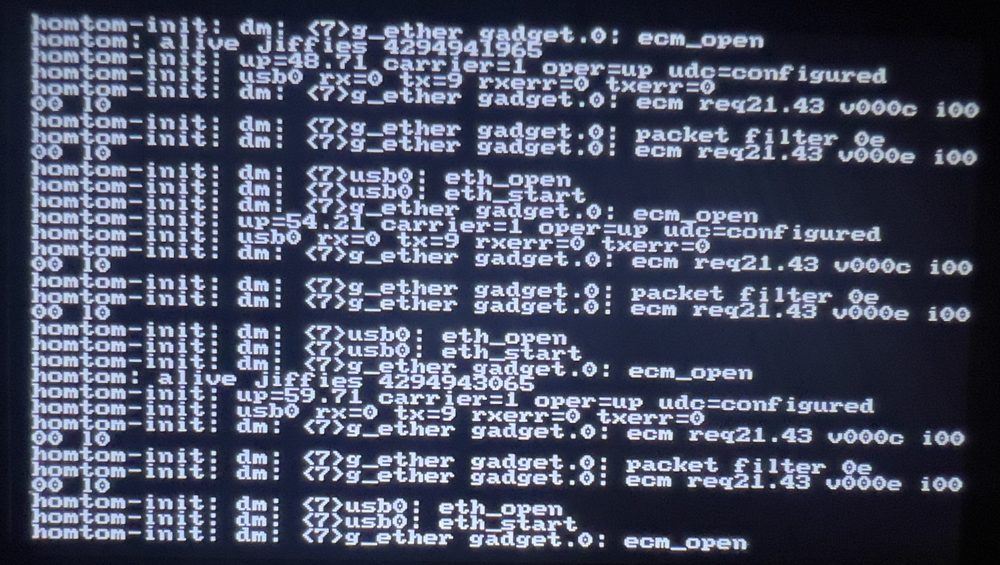
That’s when it stopped feeling like archaeology. After that came a USB network link and a shell, which is a luxury I now appreciate every time I type a command.
Where it is now
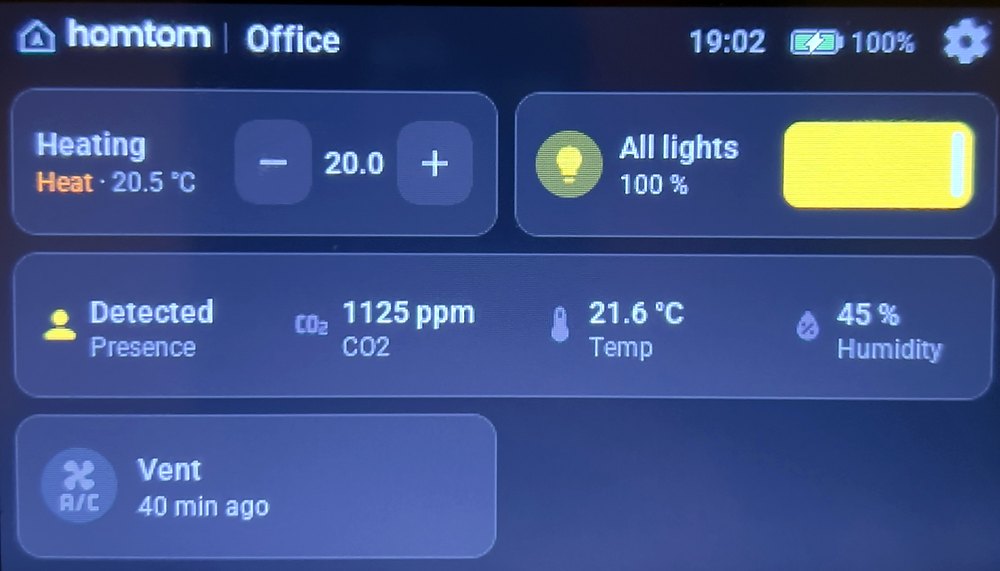
It runs Linux 6.1 with a small set of my own services. It boots to its own splash, and then it’s a real Home Assistant panel for the room it hangs in: heating, lights, presence, air quality and the ventilation, with live state from the house, on a screen that was supposed to be in a landfill.
The best part is a lesson I’d forgotten: the debugging aids can break things too. At one point the colour markers I’d added to find a crash were themselves the crash, because one clobbered a register at the wrong moment. I now leave them compiled out unless I’m hunting a bug.
 coldbox
New NAS firmware for an old LaCie CloudBox, an ARM box with a single disk and not much memory. The stock software is long out of support and no longer safe, but the box itself is still perfectly capable. I’d rather keep it out of e-waste.
Quick facts
- Age: the white LaCie CloudBox (also sold as the Family Box) launched in November 2012, and the bootloader on mine is dated October 2012. It’s about 14 years old.
- Hardware: a 1 GHz ARMv5 chip with no floating point, 256 MB of memory and a single SATA disk.
- Software: the original firmware is long out of support. The new system runs a current Linux kernel (6.18).
It’s a small, current Linux core that does the job well:
- File sharing that works with modern computers.
- Replication to somewhere else, plus versioned snapshots, so one mistake isn’t forever.
- A simple web interface on the box itself, with no cloud account.
- Everything beyond that as optional add-ons, so the base stays small. One example is a deep low-power mode that keeps the box asleep until it’s needed.
It’s no longer a plan. It’s installed on the real box, boots from its own disk, and everything works. I’m now building the add-ons that sit on top of the base system, starting with the low-power mode.
Why bother
- Reusing hardware beats recycling it, and recycling beats a landfill.
- Getting a device with no documentation to boot is one of the best ways I know to learn how computers really work.
- Some of the best home gear costs almost nothing second-hand.
If you have an abandoned gadget and a stubborn streak, I’d love to compare notes.